Connect to Your Mac
Before You Start
Where You’ll Connect From
Turn On Screen Sharing on the Mac
Turn on Screen Sharing.
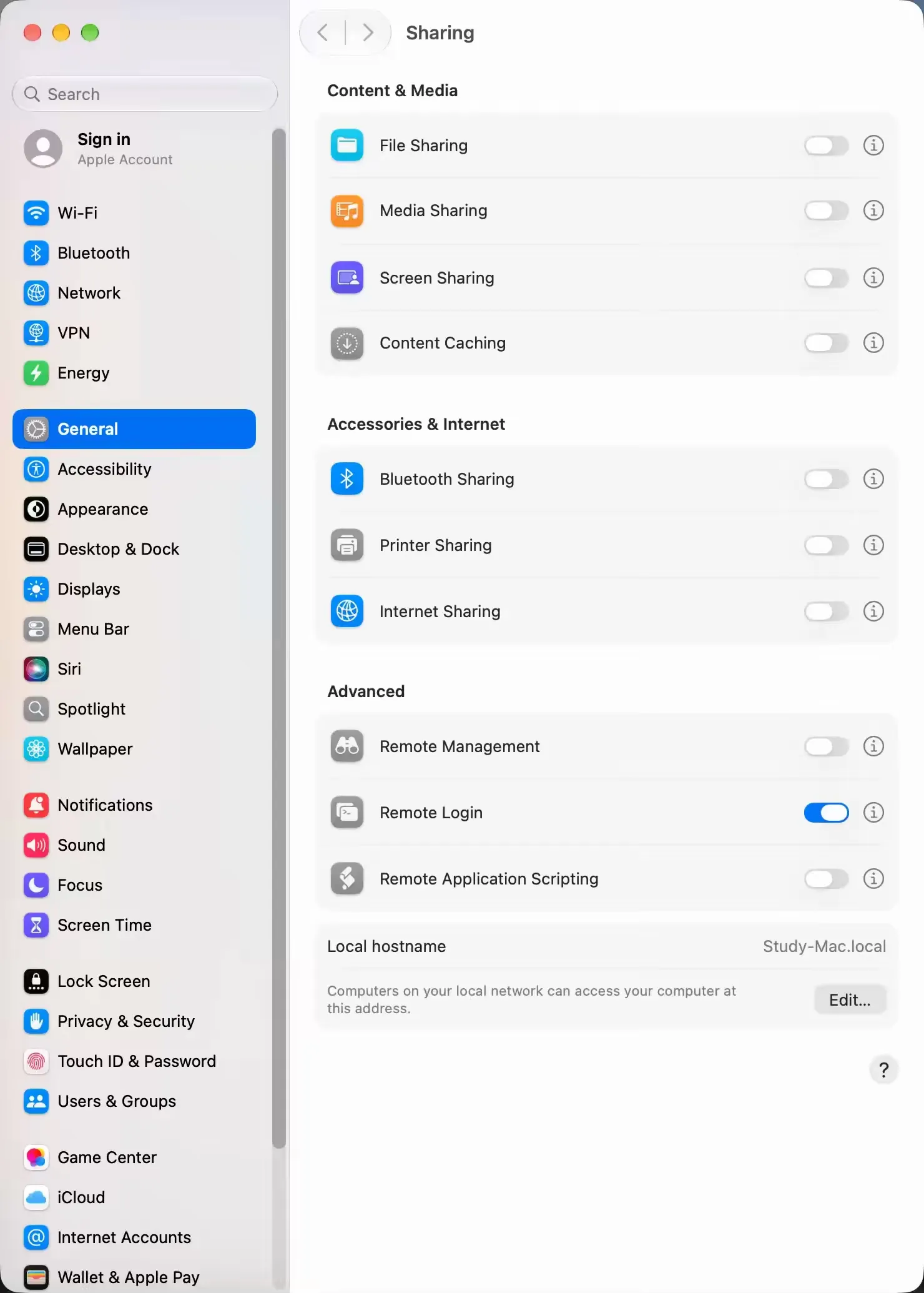
Click ⓘ next to it. Under Allow access for, choose All users, or add your account.
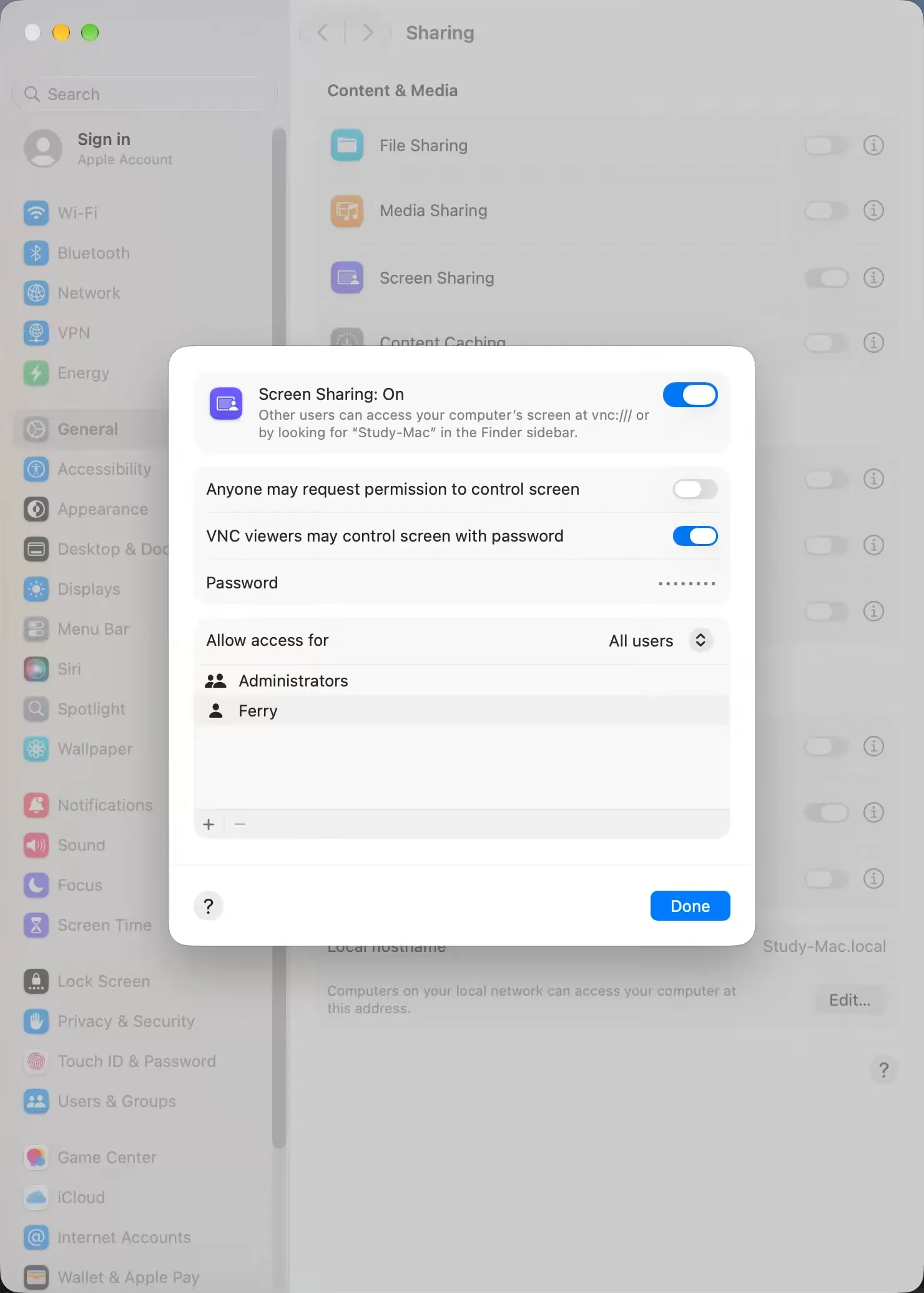
What to Enter as User Name and Password
The Mac’s user name; the full name works too
The password you use to log in to the Mac, not your Apple Account password
Find the user name
In System Settings › Users & Groups, Control-click your account, choose Advanced Options… and enter an administrator password. The User name field is what you need.
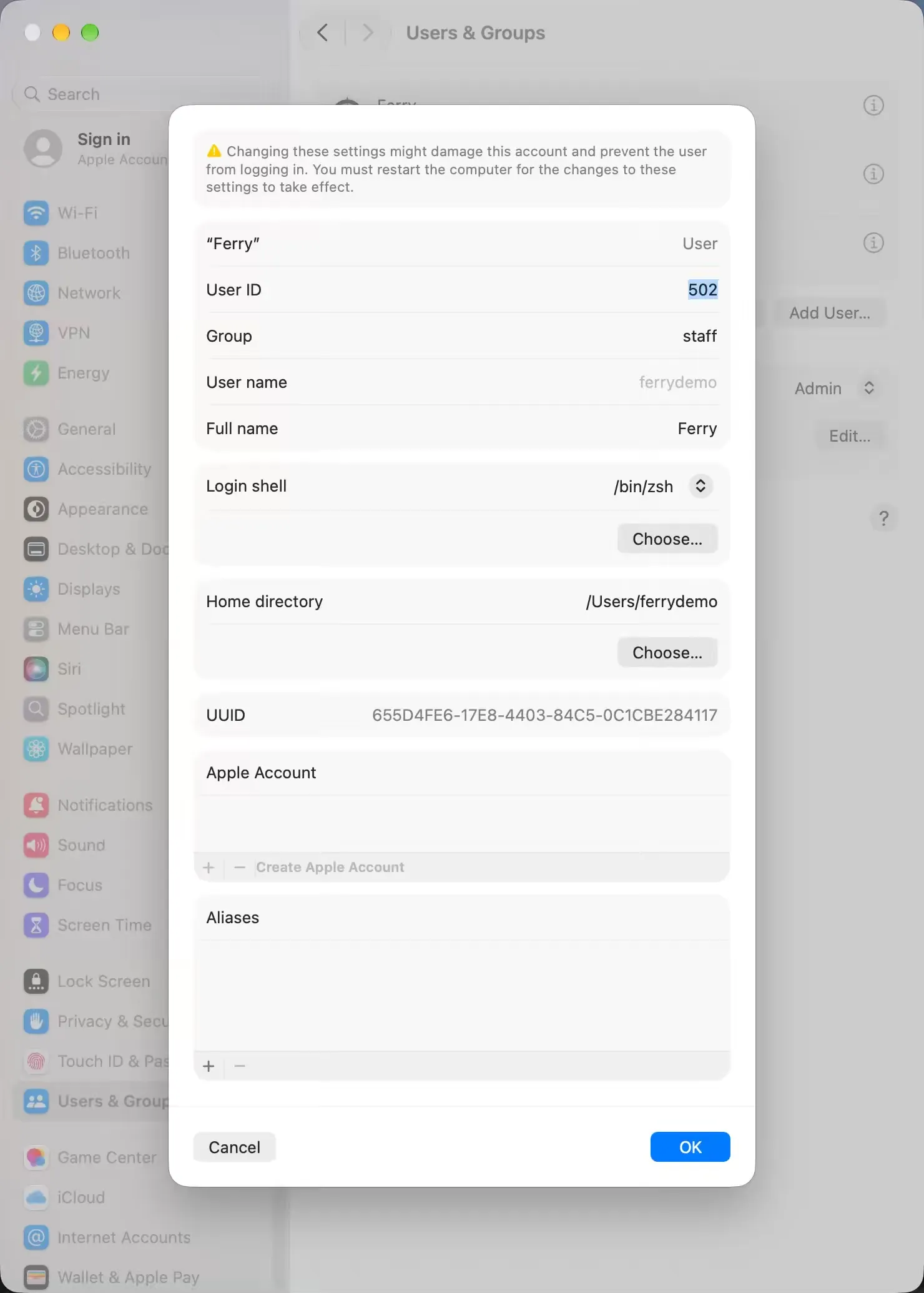
Or type whoami in Terminal on the Mac.
Add the Mac in Ferry
When the Mac is on the same Wi‑Fi as this iPhone, it shows up under Discovered on the home screen. Tap it to connect.
When the Mac is on the same Wi‑Fi, it shows up under Nearby in the sidebar. Double-click it to connect.
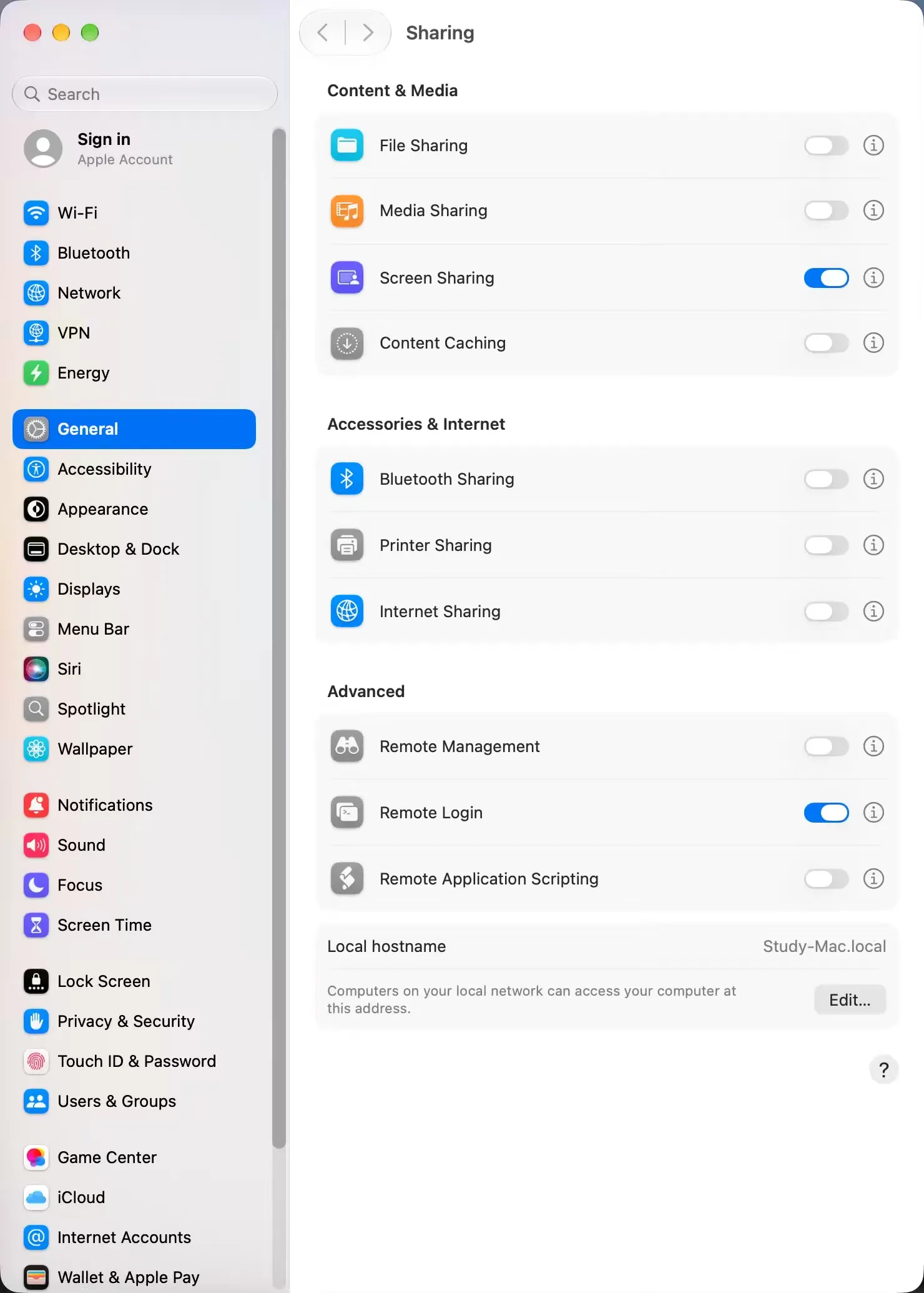
You can also add it yourself, using the local hostname shown at the bottom of the Sharing page:
Connect from Anywhere: Tailscale
- 1Download Tailscale on the Mac and sign in.Download Tailscale
- 2In Ferry’s Tailscale settings, choose Ferry Built-in and sign in to the same account. This iPhone doesn’t need the Tailscale app.Open Tailscale SettingsIf you already have the Tailscale app, you can use it instead.
- 3After you sign in, the Mac shows up under Discovered on the home screen. You can also enter its Tailscale name or its address starting with 100.After you sign in, the Mac shows up under Tailscale in the sidebar. You can also enter its Tailscale name or its address starting with 100.
shufang-mac100.101.102.103 - 4In the Tailscale admin console, disable key expiry for this Mac (Disable key expiry). Otherwise you’ll need to sign in again at the Mac in about six months.Tailscale docs
Keep the Mac Reachable
You can’t connect to a Mac that’s asleep.
- Prevent your Mac from automatically sleeping when the display is off
- Wake for network access
- Start up automatically after a power failure
- Prevent automatic sleeping on power adapter when the display is off
- Wake for network access: anything but Never
Keep it plugged in. Closing the lid puts it to sleep, unless it’s on power with an external display, keyboard and mouse.
Wake for network access only works on the same network. From outside, a sleeping Mac can’t be woken, so turn on the option that prevents automatic sleeping. The display still turns off.
After the Mac Restarts
A Mac with FileVault on stops at the unlock screen after a restart, before Screen Sharing and Tailscale are running. Someone has to enter the password at the Mac and get to the desktop before you can connect remotely. This is the same for MacBook and for desktops like Mac mini.
- When you restart it yourself, run this line in Terminal and enter your password. If the Mac supports it, it won’t need unlocking after that restart:
sudo fdesetup authrestart
- On a Mac with Apple silicon and macOS 26 or later: turn on Remote Login in Sharing beforehand. After a restart, log in once over SSH from the same network to unlock it. This only unlocks the disk; Tailscale connects once someone logs in to the desktop.Apple Support
- If FileVault is off, you can turn on automatic login so the Mac goes straight to the desktop after a restart.Apple Support
Connect to Your Windows PC
Before You Start
Where You’ll Connect From
Turn On Remote Desktop on Windows
Turn on Remote Desktop, then select Confirm in the dialog.
Select the arrow next to the switch and check “Require devices to use Network Level Authentication to connect”.
Administrator accounts can connect right away. Add other accounts under Remote Desktop users.
Microsoft SupportWhat to Enter as User Name and Password
The account’s email and password, not the PIN
The password you sign in to the PC with
Find the user name
If it shows an email address, it’s a Microsoft account: use that email as the user name. If it shows “Local account”, type whoami in Command Prompt; the user name is the part after “\”.
Add the PC in Ferry
Set System to Windows. Protocol is then Remote Desktop.
For the address, use the PC’s IP address: type ipconfig in Command Prompt and look for “IPv4 Address”.
The first time you connect, check the certificate fingerprint. Select Trust and Connect only if it matches the one on Windows.
How to Check on Windows
- 1Press Win+R, type certlm.msc, then press Enter
- 2Open “Remote Desktop › Certificates” and double-click the certificate
- 3On the Details tab, find “Thumbprint”
Connect from Anywhere: Tailscale
- 1Download Tailscale on the Windows PC and sign in.Download Tailscale
- 2In Ferry’s Tailscale settings, choose Ferry Built-in and sign in to the same account. This iPhone doesn’t need the Tailscale app.Open Tailscale SettingsIf you already have the Tailscale app, you can use it instead.
- 3When you add the PC, enter its Tailscale name or its address starting with 100.
study-pc100.101.102.104 - 4In the Tailscale admin console, disable key expiry for this PC (Disable key expiry). Otherwise you’ll need to sign in again at the PC in about six months.Tailscale docs
Keep the PC Reachable
A PC that’s asleep or hibernating can’t be reached.
- Plugged in, sleep: Never
- Plugged in, hibernate: Never (not every PC has this)
This page is called Power & battery. Keep the laptop plugged in. To connect with the lid closed: in Control Panel › System and Security › Power Options › Choose what the power buttons do, set “When I close the lid” to “Do nothing” for Plugged in.
Microsoft SupportAfter the PC Restarts
- By default, Tailscale on Windows is online only while someone is signed in to Windows, so after a restart or sign-out you can’t reach the PC from outside. Right-click the Tailscale icon in the taskbar and choose Preferences › Run unattended.Tailscale docs
- A PC with a BitLocker startup PIN needs someone to enter the PIN after it restarts. When you restart it yourself, open Command Prompt as administrator and run this line; the next restart won’t ask for the PIN:
manage-bde -protectors -disable C: -RebootCount 1
Microsoft Support